> For the complete documentation index, see [llms.txt](https://docs.apica.io/llms.txt). Markdown versions of documentation pages are available by appending `.md` to page URLs; this page is available as [Markdown](https://docs.apica.io/flow/persistence-queue-for-forwarder-buffers.md).
# Persistence Queue for Forwarder Buffers
This page explains what Persistence Queues are, why they are useful, and how to configure them for forwarders.
### Overview
A persistence queue is a **file-based buffer** used by forwarders to temporarily store incoming data on disk before it is forwarded. This mechanism helps:
* Prevent data loss during backpressure or downstream outages
* Handle ingestion bursts by allowing larger queue sizes
* Control behavior when the queue becomes full
Persistence queues can be configured while **creating or updating** a forwarder.
#### Steps to create forwarder and configure persistence queue
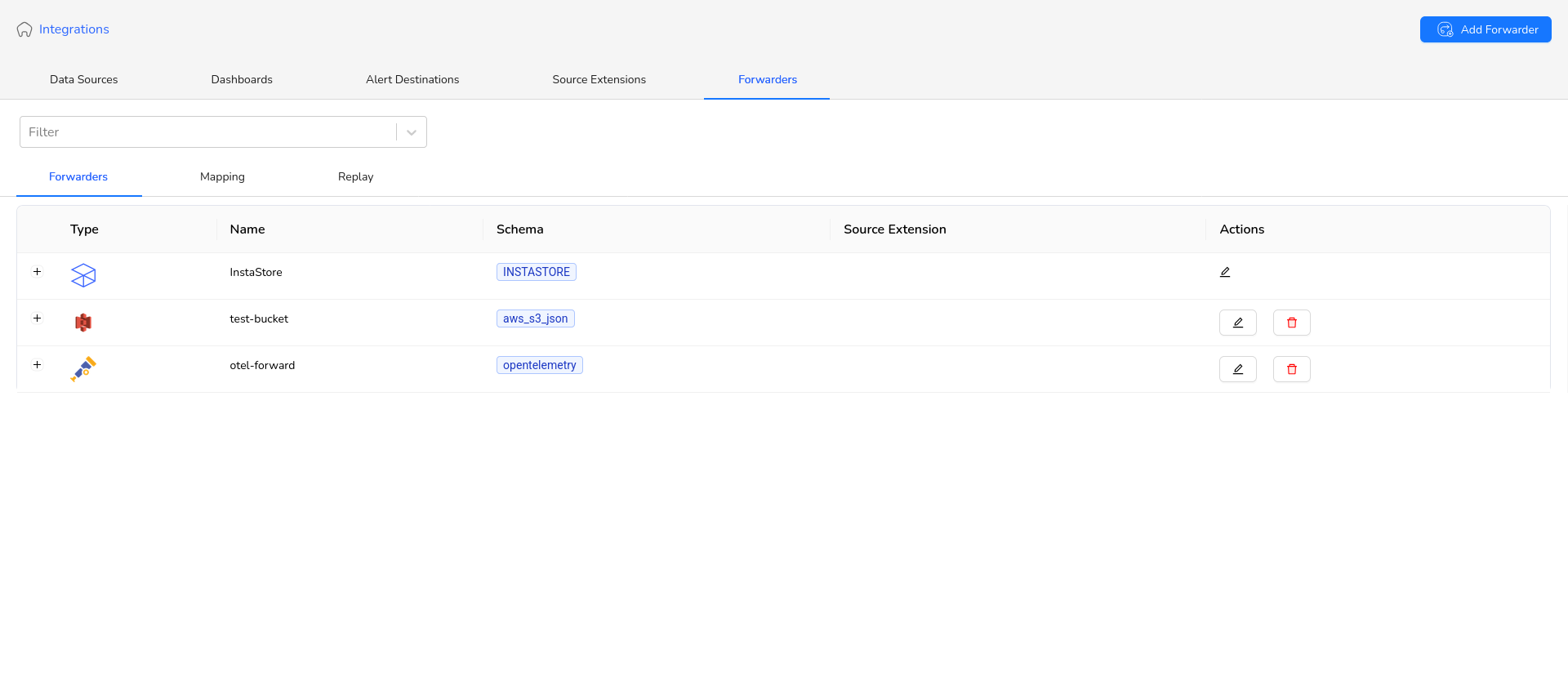
* Click the **Integrations** tab from the navigation bar.
* Navigate to the **Forwarders** tab.
* Click **Add Forwarder** (top-right) to open the *Create Forwarder* modal.
### Persistence Queue Settings
You will find the following three settings related to the persistence queue:
1. **Buffer Size** : Maximum size (in bytes) of the persistent, file-based queue. Larger values use more disk and allow higher ingest bursts.
1. **Available Space Indicator**
1. The suffix shows the currently available disk space (in bytes).
2. This is calculated as:
**Total allowed space (1 GB) − Space used by all existing forwarders.**
2. **Persist Buffer** :
1. A toggle to **enable or disable persistence**.
2. **Important Notes:**
1. When persistence is **disabled**:
1. The buffer size defaults to **10 MB**, even if a larger value is configured.
2. To use the configured buffer size:
1. Persistence **must be enabled**
3. **Queue policy**: Specifies the action to take when the buffer reaches its maximum size due to backpressure.
Available options:
**Drop Incoming Logs**
* Drops all incoming logs in the request
* Returns **HTTP 200**
* Continues dropping logs until backpressure is relieved
**Block Incoming Logs**
* Blocks all incoming log requests
* Returns **HTTP 429 (Too Many Requests)** with a retry signal
* Continues blocking until backpressure is relieved
#### Finalizing Forwarder Creation
* Fill in the other details and click on create. On successful creating, forwarder will be shown on list.
#### Map forwarder to data-flows
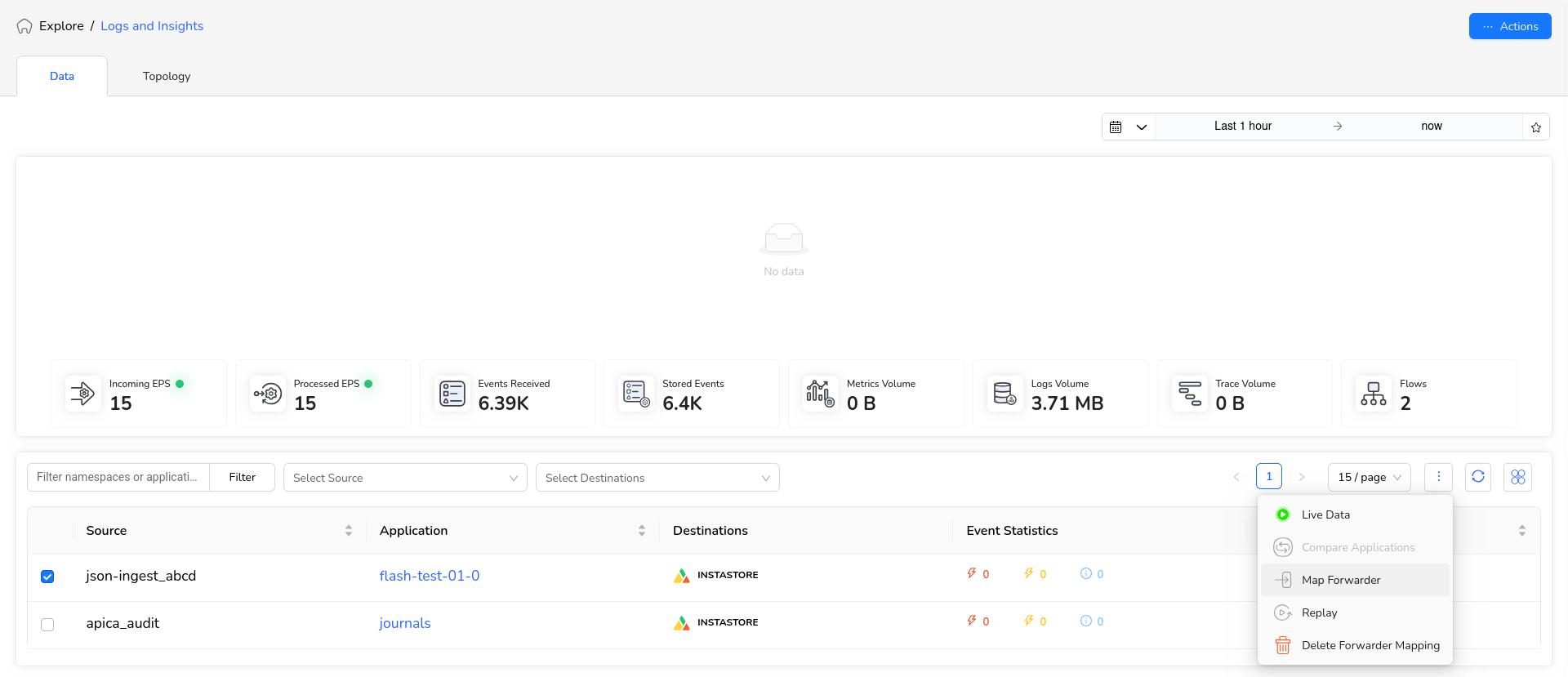
* Go to Explore -> Logs & Insights page via navbar.
* Click on a dataflow and click on the 3 dots on the top right of the table, and select Map Forwarder
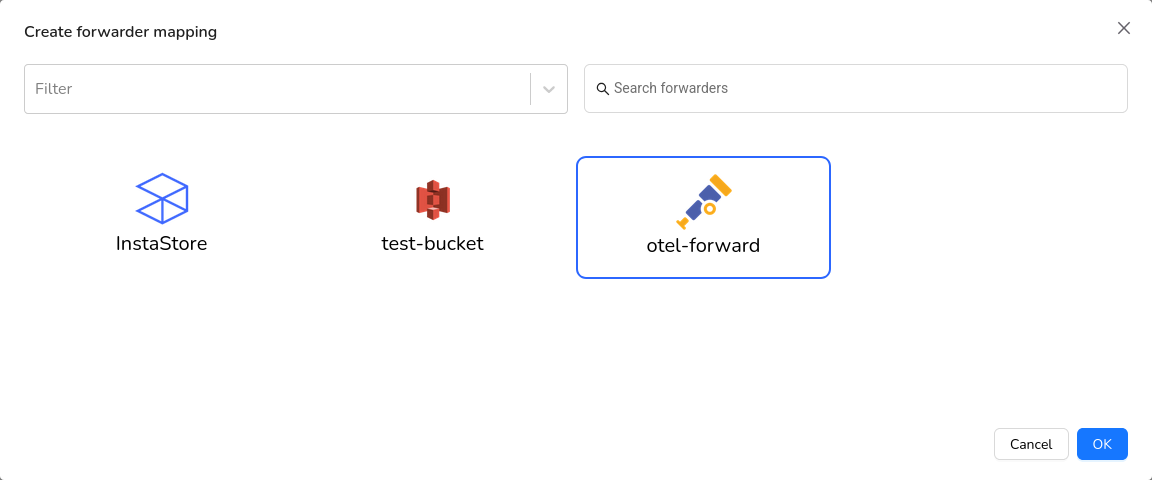
* From the list Select your Forwarder and click on OK.
* Your Forwarder should show up in the list, and mapped to the flow you selected.