> For the complete documentation index, see [llms.txt](https://docs.apica.io/llms.txt). Markdown versions of documentation pages are available by appending `.md` to page URLs; this page is available as [Markdown](https://docs.apica.io/flow/pipeline-management/data-flow-pipeline-dashboard.md).
# Pipeline Overview Dashboard
Dashboard tab enables the users to visualize the details for the pipelines.
Click on the `Explore` Option from the top menu and click on `Pipelines`
Navigating to Pipeline Page
Click on the Dashbaord tab, this tab has four sub tabs
1. Overview
2. Pipeline Traffic
3. Pipeline Insights
4. Alerts
### Overview Tab:
This tab helps provide an quick overview on the Details of Events and Bytes consumed. It also outlines Pipeline information.
Widgets available in the overview Tab
#### Pipeline Savings (MB)
This Widget shows total data savings by pipeline, it displays the Count, Max and Average. Pipeline Details along with the details mentioned above are displayed under the widget.
#### Pipeline Execution Time (p99)
This widget shows the total execution time the pipeline took.
#### Pipeline Execution Time (Avg)
The average execution time the Pipeline took.
#### Active Pipelines
Displays the Total number of Active Pipelines.
#### Total Events Count Ingested
Displays the total number of Ingested pipeline events ingested.
#### Total Events Count Output
Displays the total number of Ingested pipeline events processed.
#### Total Filtered Events
Displays Filtered Pipeline events
#### Total Savings
Displays the Total bytes saved
Total New Streams
Displays total new streams created.
Total Streams output Events
Displays total steams that were processed.
### Pipeline Traffic Tab
#### Pipeline Bytes In
Displays a line chart showing the byte ingested
#### Pipeline Bytes Out
Displays a line chart showing the byte processed
#### Pipeline Events In
Displays the number of Events (logs) that were ingested.
#### Pipeline Events Out
Displays the number of Events (logs) that were processed.
### Pipeline Insights
#### Pipeline Amplification:
#### Pipeline Amplification By Dataflows
#### Dropped Logs per Pipeline
Displays the number of logs that were dropped by Pipeline
#### Dropped Logs per Rule
Displays the number of logs that were dropped by Rule
#### Code Rule Input Size
Displays the Number of bytes ingested by Code Rule
#### Code Rule Output Size
Displays the Number of bytes Processed by Code Rule
Stream Rule Input Events
Displays logs ingested by Stream Rule
Stream Rule Input Bytes
Displays Bytes ingested by Stream Rule
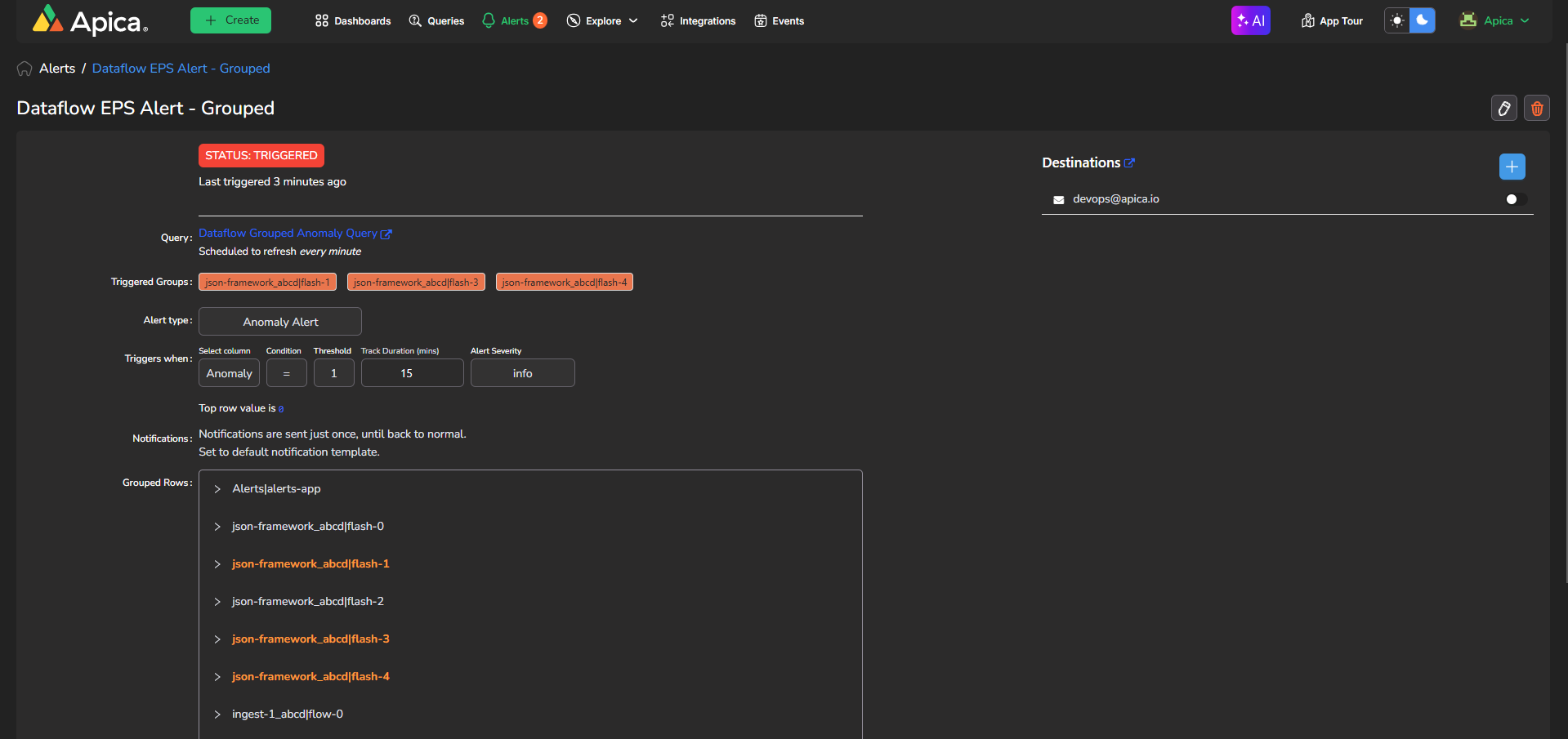
### Alerts
Displays list of Alerts that are created.
When creating an Query an option has been added to Group by Pipeline. This allows the users to identify anomalies easily. On the Alerts page each of pipelines are displayed separately and Pipelines with Anomalies are highlighted in Red and it also highlights the item with the Anomaly.