# Visualize Pipelines

Creating a Pipeline

Click on the `Explore` Select from the top menu and click on `Pipelines`

<figure><img src="https://2948796384-files.gitbook.io/~/files/v0/b/gitbook-x-prod.appspot.com/o/spaces%2F-LmzGprckLqwd5v6bs6m%2Fuploads%2F7KQ3bbzolS0mDtLHZOc9%2Fimage.png?alt=media&#x26;token=772410df-38a9-4326-8434-992692b8f2ad" alt=""><figcaption><p>Navigating to Pipeline Page</p></figcaption></figure>

Hover on the `Actions` and click on `Visualize Pipeline`

<figure><img src="https://2948796384-files.gitbook.io/~/files/v0/b/gitbook-x-prod.appspot.com/o/spaces%2F-LmzGprckLqwd5v6bs6m%2Fuploads%2F9UNFw7s7HwLI2YLWKOLD%2FScreenshot%202025-05-02%20220846.png?alt=media&#x26;token=35bdae4a-37f6-437b-af9e-6c8551a2eda3" alt=""><figcaption><p>Hover over the Actions button on the top-right</p></figcaption></figure>

On clicking the Visualize Pipeline button, a new dialog opens. Select the desired date-time range, select the desired namespace along with the linked applications, and click Create to create a new pipeline view.

<figure><img src="https://2948796384-files.gitbook.io/~/files/v0/b/gitbook-x-prod.appspot.com/o/spaces%2F-LmzGprckLqwd5v6bs6m%2Fuploads%2FfXDgziRhB0ncGXHeZ7Fr%2FScreenshot%202025-05-02%20221156.png?alt=media&#x26;token=2d0486bb-ec9e-4e83-aa8a-6f2aa093c631" alt=""><figcaption></figcaption></figure>

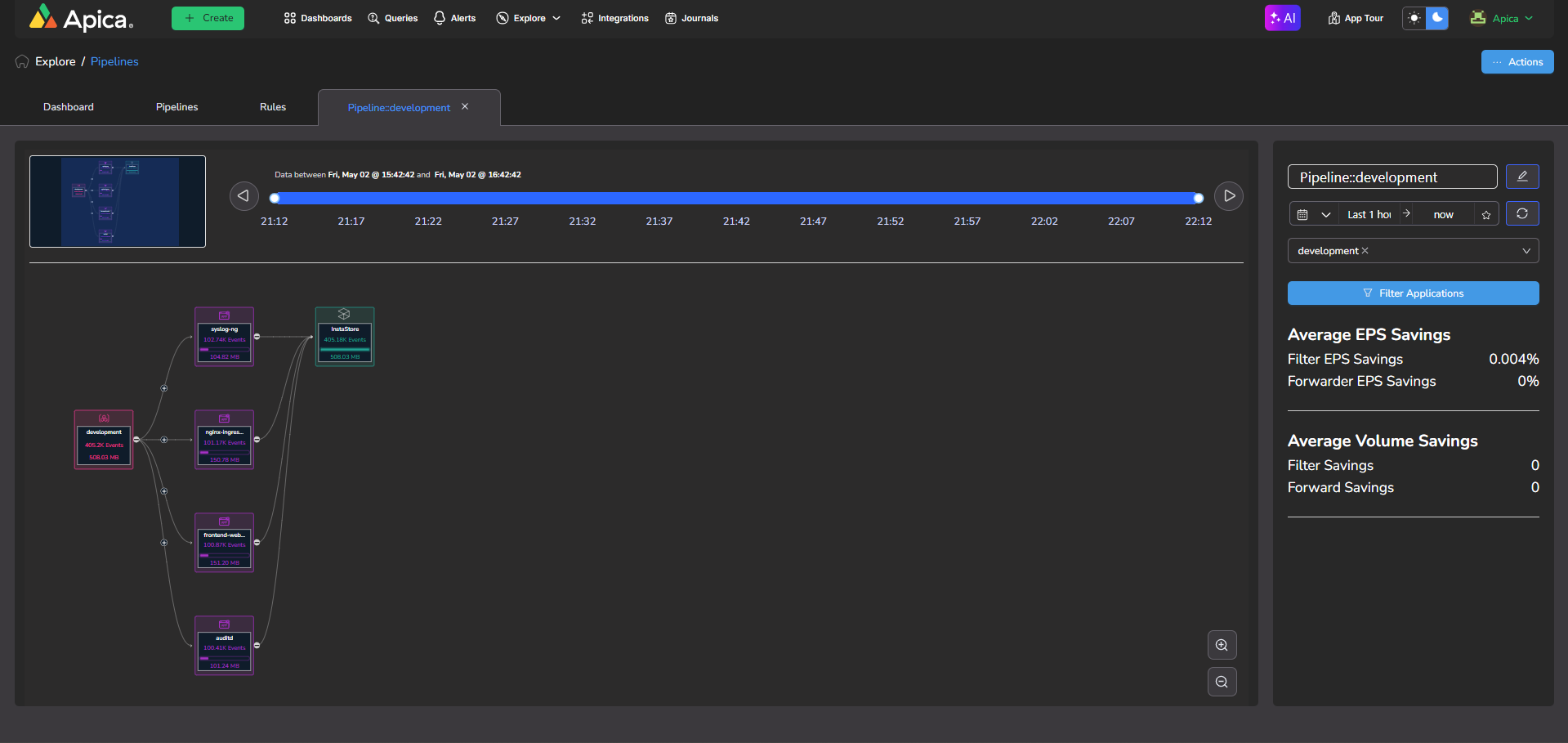
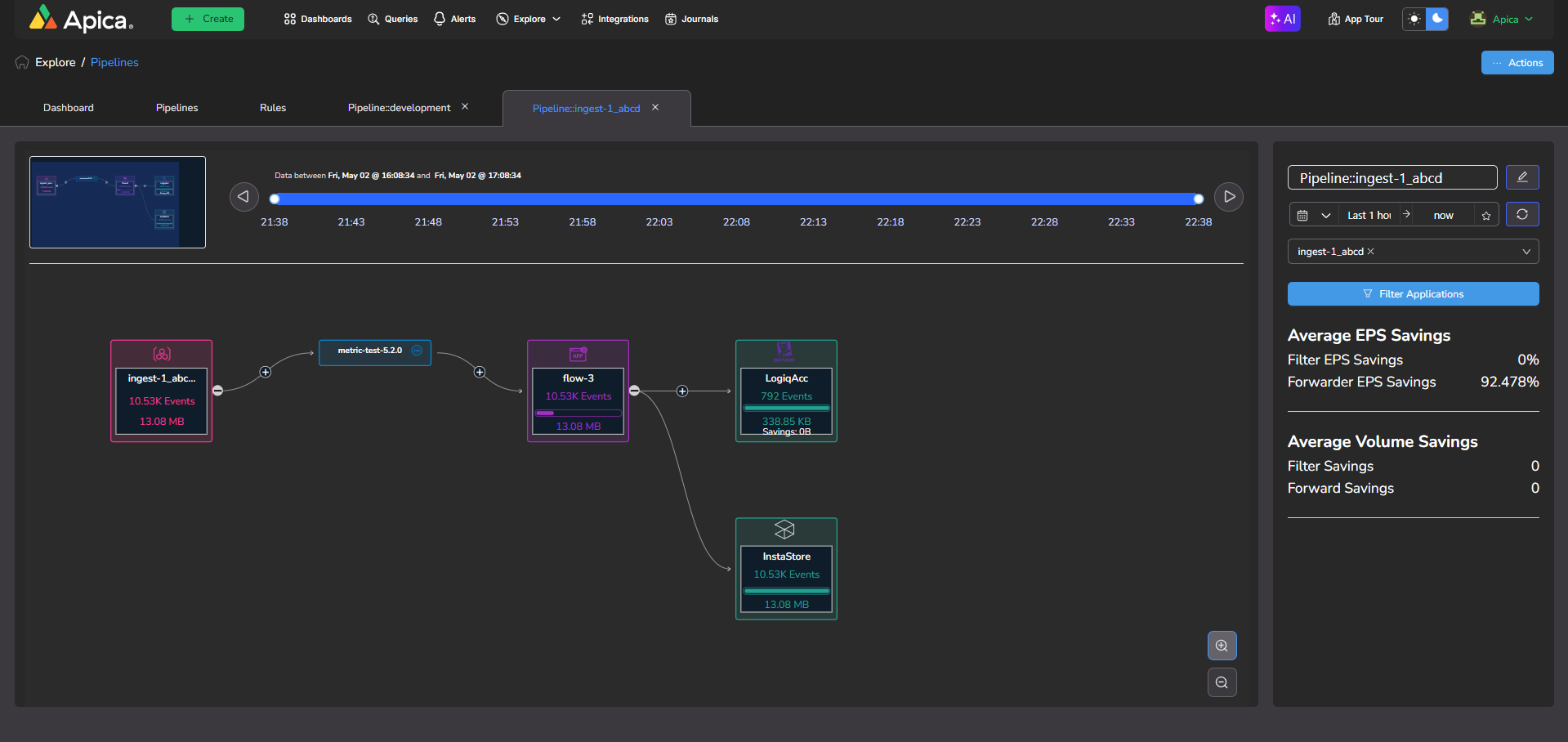
On click of the Visualize Pipeline button a new pipeline tab will get added with the pipeline view as shown below

<figure><img src="https://2948796384-files.gitbook.io/~/files/v0/b/gitbook-x-prod.appspot.com/o/spaces%2F-LmzGprckLqwd5v6bs6m%2Fuploads%2FYJIdYsGtNK5201xYjSwX%2FScreenshot%202025-05-02%20221316.png?alt=media&#x26;token=136a06dc-87c8-4653-89d0-2c594448e372" alt=""><figcaption></figcaption></figure>

**Pipeline View**: The pipeline view shows the data flow between the nodes. each node is connected with the edges to show the data flow between the nodes. The node will have the following details.

\
1\. Name of the node\
2\. Total number of Events\
3\. Total volume size of the events\
4\. Total savings for application and target node\
**Minimap**: Minimap is a tool for quick preview and exploration of large graphs.\
**Time Range Slider**: Helps to select the time range between the selected date and time\
**Zoom In/Out:** Tool to zoom in and zoom out the graph\
**Side Bar**: Helps to make the following changes\
1\. Change the theme\
2\. Change the default title of the pipeline tab\
3\. Select a different date time range\
4\. Select a different namespace, can do multi-select\
5\. Shows the overall EPS and Valume savings.

### Add/Choose the existing Pipeline for Dataflow.

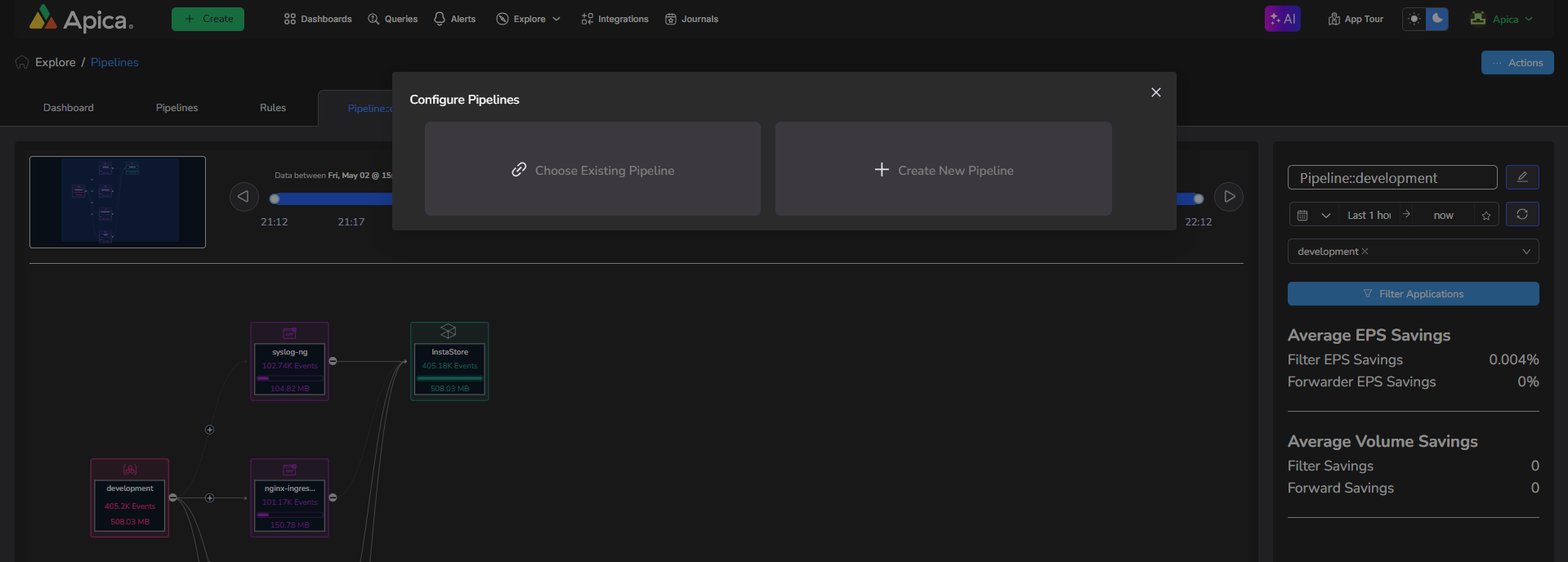
Click the + icon to create or choose the existing Pipeline

<figure><img src="https://2948796384-files.gitbook.io/~/files/v0/b/gitbook-x-prod.appspot.com/o/spaces%2F-LmzGprckLqwd5v6bs6m%2Fuploads%2FW3dxNKYalX4lYzBXhShp%2FScreenshot%202025-05-02%20221425.png?alt=media&#x26;token=f231c36c-59e7-4d2e-908e-78a5184bc288" alt=""><figcaption><p>Add/Choose existing Pipeline</p></figcaption></figure>

On click of + icon, Configure Pipeline dialog will show, with the options\
1\. Choose Existing Pipeline\
2\. Create New Pipeline

<figure><img src="https://2948796384-files.gitbook.io/~/files/v0/b/gitbook-x-prod.appspot.com/o/spaces%2F-LmzGprckLqwd5v6bs6m%2Fuploads%2FhspzSJcCARBhinHlP9zx%2FScreenshot%202025-05-02%20221703.png?alt=media&#x26;token=55c22dbc-2cb2-4535-8ad8-0212ac7f9433" alt=""><figcaption></figcaption></figure>

Select the Choose Existing Pipeline to choose an existing Pipeline for the Dataflow

<figure><img src="https://2948796384-files.gitbook.io/~/files/v0/b/gitbook-x-prod.appspot.com/o/spaces%2F-LmzGprckLqwd5v6bs6m%2Fuploads%2FpLDvHH56dG0n9KNG7AOj%2FScreenshot%202025-05-02%20221844.png?alt=media&#x26;token=afb3ab7b-0b6b-4b6c-a45a-43f91aecde3b" alt=""><figcaption><p>Choose Existing Pipeline</p></figcaption></figure>

Select the Pipelines that will be applied to the Dataflow and click on the Blue arrow button to add them to dataflow

<figure><img src="https://2948796384-files.gitbook.io/~/files/v0/b/gitbook-x-prod.appspot.com/o/spaces%2F-LmzGprckLqwd5v6bs6m%2Fuploads%2Fh1FfobuynTtrIL47NrV3%2Fimage.png?alt=media&#x26;token=edef05c2-514e-48bc-a8a6-36ad37494cb5" alt=""><figcaption></figcaption></figure>

Click on the Delete Icon on the right side to disassociate it from the Dataflow. Once done, click on the Close button on the dialog to apply the changes.

Select the Create New Pipeline button to create a new Pipeline for the namespace and application. Once the  Configure Pipeline Modal opens, follow the same steps as [#creating-a-pipeline](https://docs.apica.io/flow/data-flow-pipelines-new#creating-a-pipeline "mention").

<figure><img src="https://2948796384-files.gitbook.io/~/files/v0/b/gitbook-x-prod.appspot.com/o/spaces%2F-LmzGprckLqwd5v6bs6m%2Fuploads%2FgcFw2ih4F3Q7fmBgs3F5%2Fimage.png?alt=media&#x26;token=2d7b596b-dc84-4ed3-b42c-c82b6865f210" alt=""><figcaption></figcaption></figure>

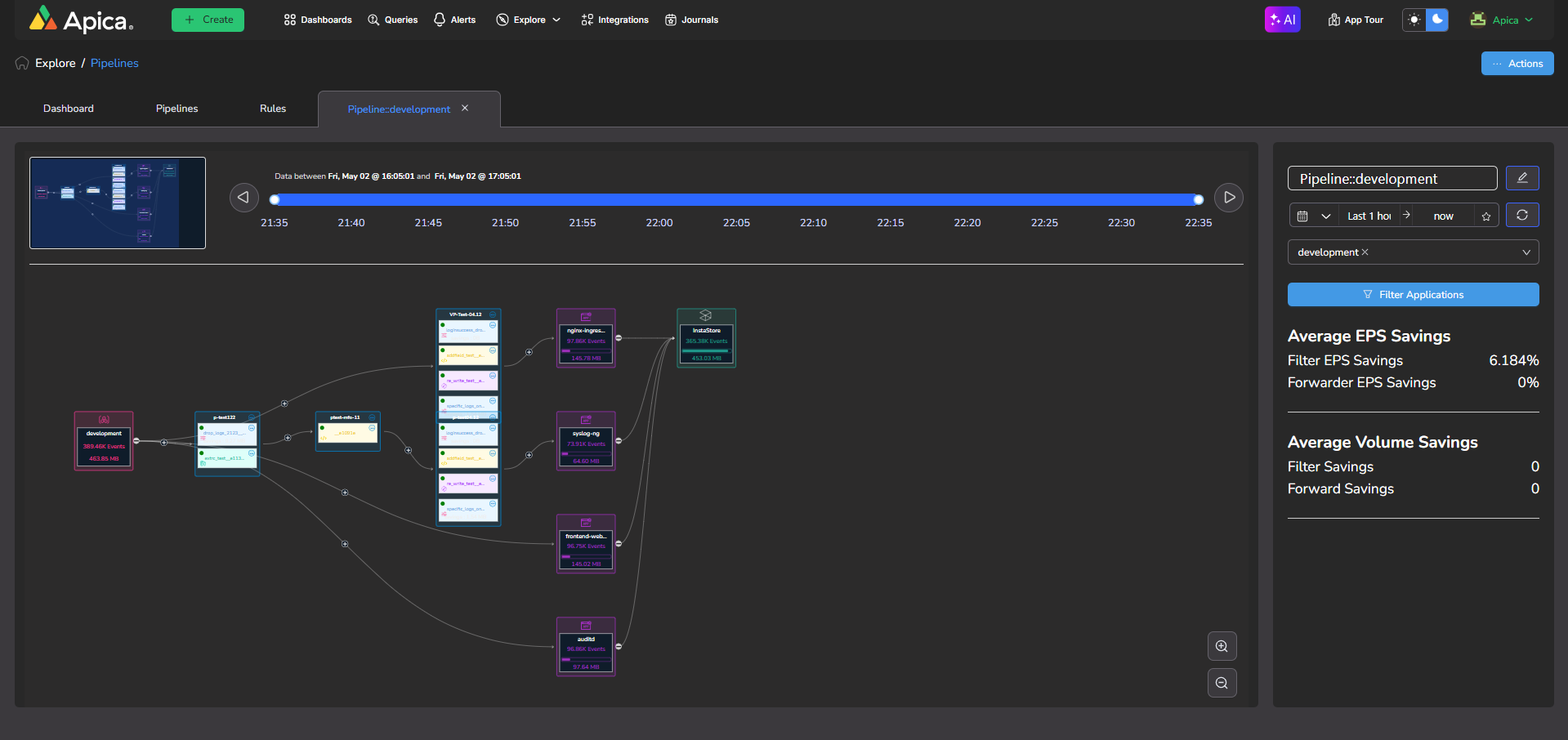
After creating the pipeline, click on the reload button to visualise.

<figure><img src="https://2948796384-files.gitbook.io/~/files/v0/b/gitbook-x-prod.appspot.com/o/spaces%2F-LmzGprckLqwd5v6bs6m%2Fuploads%2FSjR5f4pFqlq9KrV2XKgg%2FScreenshot%202025-05-02%20223521.png?alt=media&#x26;token=4a36e980-40c7-44e7-a1d3-a430717796e9" alt=""><figcaption></figcaption></figure>

### Add Rule(Forwarder)

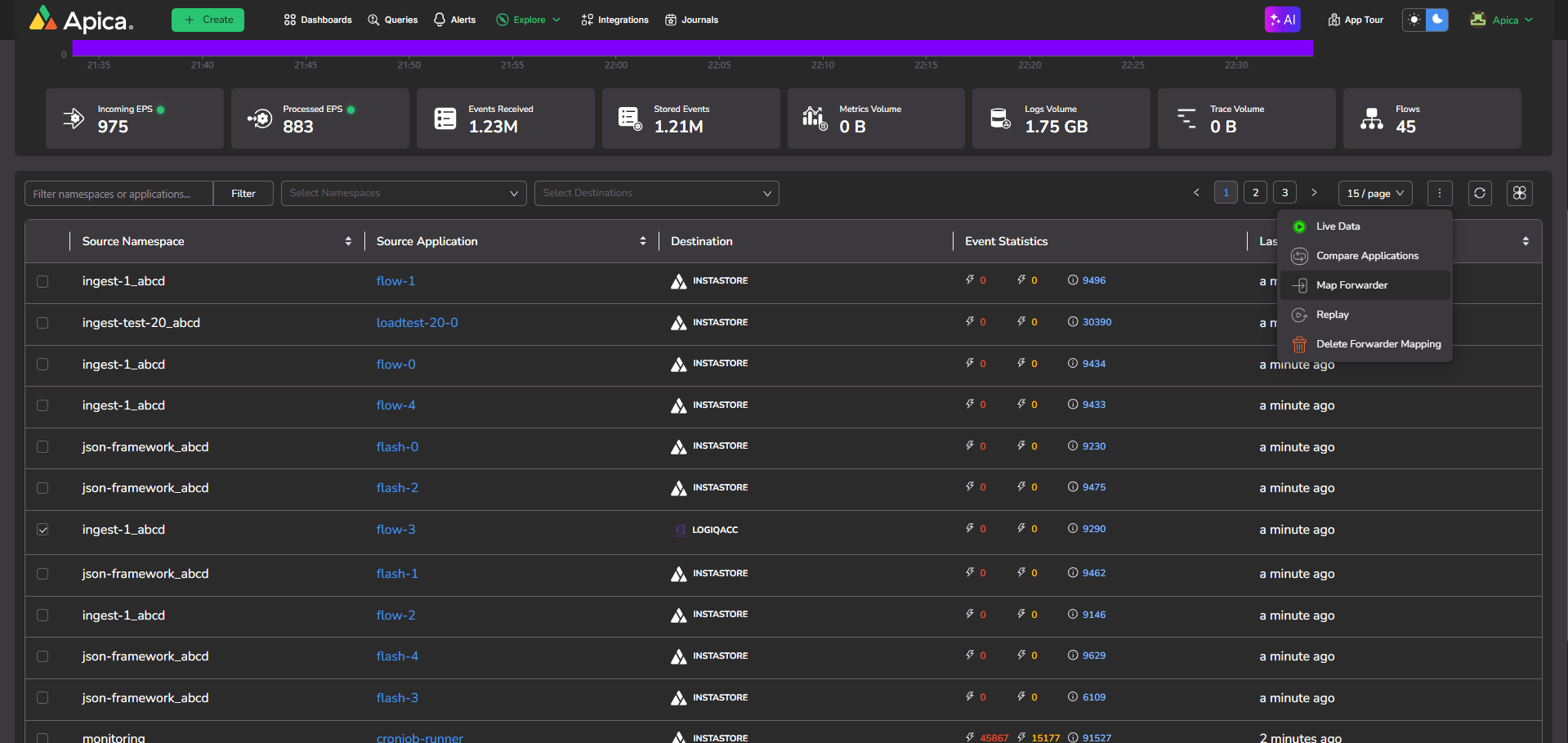
Before adding the forwarder rule, create a forwarder and map the forwarder in the data flow tab.

<figure><img src="https://2948796384-files.gitbook.io/~/files/v0/b/gitbook-x-prod.appspot.com/o/spaces%2F-LmzGprckLqwd5v6bs6m%2Fuploads%2FnVzBQXT1LJGBaQPEGomE%2FScreenshot%202025-05-02%20223407.png?alt=media&#x26;token=d9f579e4-38a2-4ef1-85c3-9d4f5d66a197" alt=""><figcaption><p>Map a forwarder</p></figcaption></figure>

After adding the forwarder the new node will be added as below

<figure><img src="https://2948796384-files.gitbook.io/~/files/v0/b/gitbook-x-prod.appspot.com/o/spaces%2F-LmzGprckLqwd5v6bs6m%2Fuploads%2Fv2zZ4xJJ2jFngKdFBK95%2FScreenshot%202025-05-02%20224136.png?alt=media&#x26;token=77b2a344-6e9f-472a-8b7c-56a381abafe4" alt=""><figcaption><p>Pipeline with the forwarder</p></figcaption></figure>


---

# Agent Instructions: Querying This Documentation

If you need additional information that is not directly available in this page, you can query the documentation dynamically by asking a question.

Perform an HTTP GET request on the current page URL with the `ask` query parameter:

```
GET https://docs.apica.io/flow/pipeline-management/data-flow-pipelines.md?ask=<question>
```

The question should be specific, self-contained, and written in natural language.
The response will contain a direct answer to the question and relevant excerpts and sources from the documentation.

Use this mechanism when the answer is not explicitly present in the current page, you need clarification or additional context, or you want to retrieve related documentation sections.