> For the complete documentation index, see [llms.txt](https://docs.apica.io/llms.txt). Markdown versions of documentation pages are available by appending `.md` to page URLs; this page is available as [Markdown](https://docs.apica.io/getting-started/ascent/using-the-opentelemetry-demo.md).
# Using the OpenTelemetry Demo
## What is the OpenTelemetry (OTel) Demo?
The OTel Demo is a microservices-based application created by OpenTelemetry's community to demonstrate its capabilities in a realistic, distributed system environment. This demo application, known as the OpenTelemetry Astronomy Shop, simulates an e-commerce website composed of over 10 interconnected microservices (written in multiple languages), and communicates via HTTP and gRPC. Each service is fully instrumented with OTel, generating comprehensive traces, metrics, and logs.
The demo serves as an invaluable resource for understanding how to implement and use OpenTelemetry in real-world applications. Using the Ascent platform with the OTel Demo enables you to converge all of the IT data, manage the telemetry data, and monitor and troubleshoot the operational data in real-time. The following steps guide you through the process of using the OTel Demo application with Ascent.
Ascent Quick Start Process
## Quick Start Process for Using the OTel Demo with Ascent
All users getting started with using the OTel Demo with Ascent should follow these simple steps:
1. [Setup and Deploy the OTel Demo App (steps 1-9)](#setting-up-the-otel-demo)
2. [Setup and Configure Pipeline](#step-10-setup-and-configure-pipeline)
3. [Design Queries](#step-11-design-queries)
4. [Create Dashboards](#step-12-create-dashboards)
5. [Setup Alerts and Workflow](#step-13-setup-alerts-and-workflow)
6. [Review Ongoing Data & Cost Savings](#flow-cost-savings-use-case)
In these steps, we cover the key goals and related activities to ensure a quick and easy setup of OTel Demo with Ascent along with the full pipeline deployment process.
### How to Deploy the OTel Demo Application
The goal is to ingest telemetry data (logs, metrics, traces) from relevant systems.
**Key actions include:**
* Accessing and deploying the public OpenTelemetry (OTel) Demo App
* Configure data collection setup, frequency and granularity
* Ensure data normalization
This guide aims to walk you through the steps required to deploy the OpenTelemetry Demo app and begin sending data to Ascent.
**NOTE**: We will deploy the OTel demo app using Docker for this guide.
## Prerequisites:
* Docker
* [Docker Compose v2.0.0+](https://docs.docker.com/compose/install/)
* 6 GB of RAM for the application
## Setting Up the OTel Demo
### Step 1: Get and Clone the OTel demo app repository:
`$ git clone https://github.com/open-telemetry/opentelemetry-demo.git`
### Step 2: Go to the demo folder:
`$ cd opentelemetry-demo/`
### Step 3: Start the demo app in Docker:
`$ docker compose up --force-recreate --remove-orphans --detach`
### Step 4: (Optional) Enable API observability-driven testing:
`$ docker compose up --force-recreate --remove-orphans --detach`
### Step 5: Test and access the OTel demo application:
Once the images are built and containers are started, you can now access the following OpenTelemetry components on the demo app web store:
* Web store:
* Grafana:
* Load Generator UI:
* Jaeger UI:
* Tracetest UI: , only when using `make run-tracetesting`
* Flagd configurator UI:
### Optional: Changing the demo’s primary port number
By default, the demo application will start a proxy for all browser traffic bound to port 8080. To change the port number, set the `ENVOY_PORT` environment variable before starting the demo.
* For example to use port 8081:
`$ ENVOY_PORT=8081 docker compose up --force-recreate --remove-orphans --detach`
### Step 6: Update the OTel config file:
* opentelemetry-demo/src/otel-collector/otelcol-config-extras.yml
Paste the following into the config file, overwriting it completely:
1. Copy
```
exporters:
otlphttp/apicametrics:
compression: gzip
disable_keep_alives: true
encoding: proto
metrics_endpoint: "https:///v1/metrics"
headers:
Authorization: "Bearer "
tls:
insecure: false
insecure_skip_verify: true
otlphttp/logs:
logs_endpoint: https:///v1/json_batch/otlplogs?namespace=OtelDemo&application=DemoLogs
encoding: json
compression: gzip
headers:
Authorization: "Bearer "
tls:
insecure: false
insecure_skip_verify: true
service:
pipelines:
metrics:
exporters: [otlphttp/apicametrics]
logs:
exporters: [otlphttp/logs]
```
2. Replace \with your Ascent domain, e.g. company.apica.io
3. Replace \with your Ascent Ingest Token, e.g. eyXXXXXXXXXXX...
1. See 'Step 7' to get your 'ingest-token'
4. Optional if you want to change the namespace and or application (to help ID your data in Ascent):\
`logs_endpoint: https:///v1/json_batch/otlplogs?namespace=&application=`
1. Update \ and \ for a custom namespace and application in Ascent.
### Step 7: Get Your Ingest Token from Ascent:
*
### Step 8: Get Data Flowing into Ascent:
Restart the OpenTelemetry collector by running the following command:
`$ docker compose restart`
### Step 9: Verify data flow in Ascent:
1. Log into Ascent
2. Navigate to Explore -> Logs & Insights:
Logs & Insights
3. You should see namespace "OtelDemo" and Application "DemoLogs":
4. This confirms that data is flowing from the Opentelemetry Demo Application. Feel free to click into application "DemoLogs" to view all the logs that are being sent from the Demo App.
**Now that data is flowing, please follow the steps below to learn how to interact, enhance, and visualize this data in Ascent.**
### Step 9 - FLOW (Cost Savings Use Case)
[FLOW Guide Here](#flow-cost-savings-use-case)
### Step 10 - Setup and Configure Pipeline
The goal is to transport and process the collected data.
**Key actions include:**
* Select or configure a data pipeline
* Define data routing rules
* Apply transformations, filtering, or enrichment if needed
**Links to related docs include:**
* [Configure pipelines](https://docs.apica.io/flow/pipeline-management/data-flow-pipelines-new)
* [Visualize pipelines](https://docs.apica.io/flow/pipeline-management/data-flow-pipelines)
* [Forwarding data](https://docs.apica.io/flow/pipeline-management/mapping-applications)
### Step 11 - Design Queries
The goal is to enable insights by querying telemetry data.
**Key actions include:**
* Understand the query language used
* Create baseline queries for system health
* Optimize queries for performance and cost
* Validate query results
**Links to related docs include:**
* [Data explorer overview](https://docs.apica.io/data-management/overview-1)
* [Query builder](https://docs.apica.io/data-management/overview-1/query-builder)
* [Widget](https://docs.apica.io/data-management/overview-1/widget)
### Step 12 - Create Dashboards
The goal is to visualize system performance and behavior in real time.
**Key actions include:**
* Use visual components
* Organize dashboards by domain
* Incorporate filters
* Enable drill-down for troubleshooting.
**Links to related docs include:**
* [Dashboards overview](https://docs.apica.io/getting-started/overview)
### Step 13 - Setup Alerts and Workflow
The goal is to detect anomalies and automate response actions.
**Key actions include:**
* Define alerting rules
* Set up alert destinations
* Establish escalation policies and on-call schedules
* Integrate with incident management workflows and postmortem tools
### FLOW - Cost Savings Use Case
FLOW allows you to filter unecessary data out of your logs before hitting the data lake which leads to significant cost savings. This guide will walk you through how to drop labels from our Otel Demo App logs. You can apply the same functionality to any other data source.
1. Navigate to the Logs & Insights page:
Logs & Insights
2. This view lists all of the datasources pushing data to Ascent. To access the logs, click into "DemoLogs".
3. To view one of the logs simply click one of them.
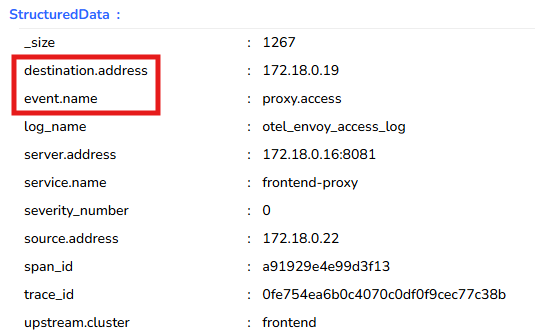
4. We have one of our otel logs here. In this example, we will be dropping "destination.address" and "event.name" from the logs.
Otel Demo App Logs
5. To drop these fields, navigate to the Pipeline tab and then click the + button shown below:
Pipeline View
5. Create a new Pipeline:
New Pipeline
7. Add a new Filter Rule. If you're interested in the other rules please use this documentation: for a detailed guide.
Filter Rule
8. Enable Drop Labels by click the slider:
Drop Labels
9. On the right of the screen you'll want to preview the logs to know what labels to drop. Select the following and then hit Preview in the top right:
Preview Logs
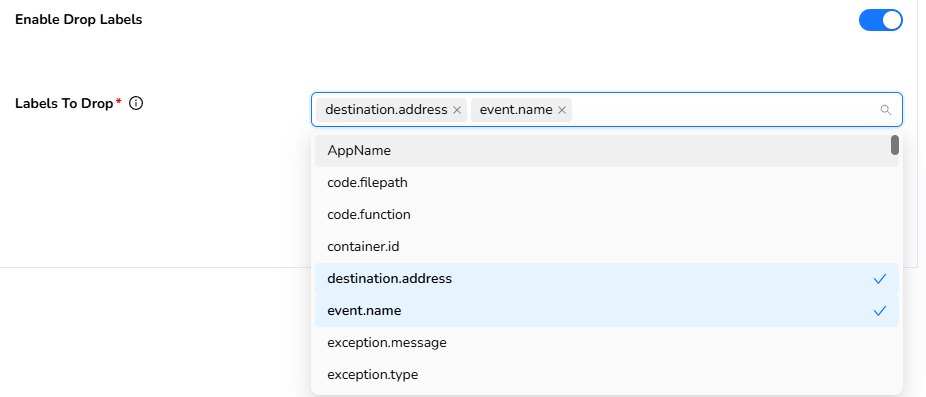
10. Here are the two labels we want to drop:
Labels
11. Select the key in the dropdown by typing them out or clicking.
Select Label
12. Click "Save" in the bottom right:
12. Go back to the log view to verify the filter rule has been applied. Refresh the page and make sure it is a new log that you're verifying:
Logs & Insights
13. As you can see, destination.address and event.name are no longer being ingested:
Otel Log
Dropping a few labels might not seem like a big deal at first, but if you exrapolate that over 10,000 or 100,000's logs, the cost savings start to add up QUICK.
\
14\. To view savings and your configured pipelines navigate to "Pipelines":
Pipelines
15. View all your pipeline data along with savings:
Pipeline Dashboard
16. For more information on pipelines please see [setup and configure pipelines](#step-10-setup-and-configure-pipeline)
**Links to related docs include:**
* [Alerts overview](/autonomous-insights/alerts.md)
* [Alerting on queries](/autonomous-insights/alerts-simple-anomaly.md)
* [Alerting on logs](/autonomous-insights/alerts-1.md)
## Additional Resources
Here are helpful links to other "Getting Started" technical guides:
* [Getting Started with Metrics](/getting-started/ascent/getting-started-with-metrics.md)
* [Getting Started with Logs](/getting-started/ascent/getting-started-with-logs.md)
* [Get acquainted with the Apica Ascent UI](/product-overview/the-ascent-ui.md)
* [Configure your data sources](/integrations/overview.md)
* [Configure Apica Ascent to send alerts to your email server](/admin/email-configuration-setup.md)
* [Add and configure alert destinations like email, Slack, and PagerDuty](/integrations/list-of-integrations/alert-destinations.md)
* [Configure SSO using SAML](/admin/single-sign-on-configuration.md)
* [Configure RBAC](/observe/log-management-overview/configuring-rbac.md)