> For the complete documentation index, see [llms.txt](https://docs.apica.io/llms.txt). Markdown versions of documentation pages are available by appending `.md` to page URLs; this page is available as [Markdown](https://docs.apica.io/platform-docs/load-testing-alt/running-multiple-tests-concurrently.md).
# Running Multiple Tests Concurrently
One of the prominent features of the ALT portal is the ability to run multiple scripts concurrently via the Scenarios feature. A scenario is a container for everything that relates to a performance test. It can contain:
* One or more scripts
* Parameter files
* Load parameters
* Infrastructure agent configuration
* Apica Performance Monitoring configuration
Scenarios can contain ZebraTester scripts, Selenium scripts, or URL scripts. Scenarios allow users to run tests in sequence one by one or a mix of tests at the same time. By using two scenarios, users can cover tests that gives the performance test results for each test separately and then and one that gives a complete view of the performance of all tests. This can save a lot of time on comparing tests run separately one by one. A performance test scenario can have up to 30 scripts/tests and configuration like ramp-up, duration, client-side monitoring etc.can be set individually for each script/test.
To create a Scenario, navigate to “Loadtest > Create & Run Scenario”:
## Creating a Scenario
The basic process for creating a scenario consists of four main steps:
1. Define scenario settings
2. Select scripts to Include in the scenario
3. Define advanced script options (optional)
4. Define test options
The “Script Options” step will only appear if you click the “Script Config” button to the right of a script within the “Scripts” tab.
### Step 1: Define Scenario Settings
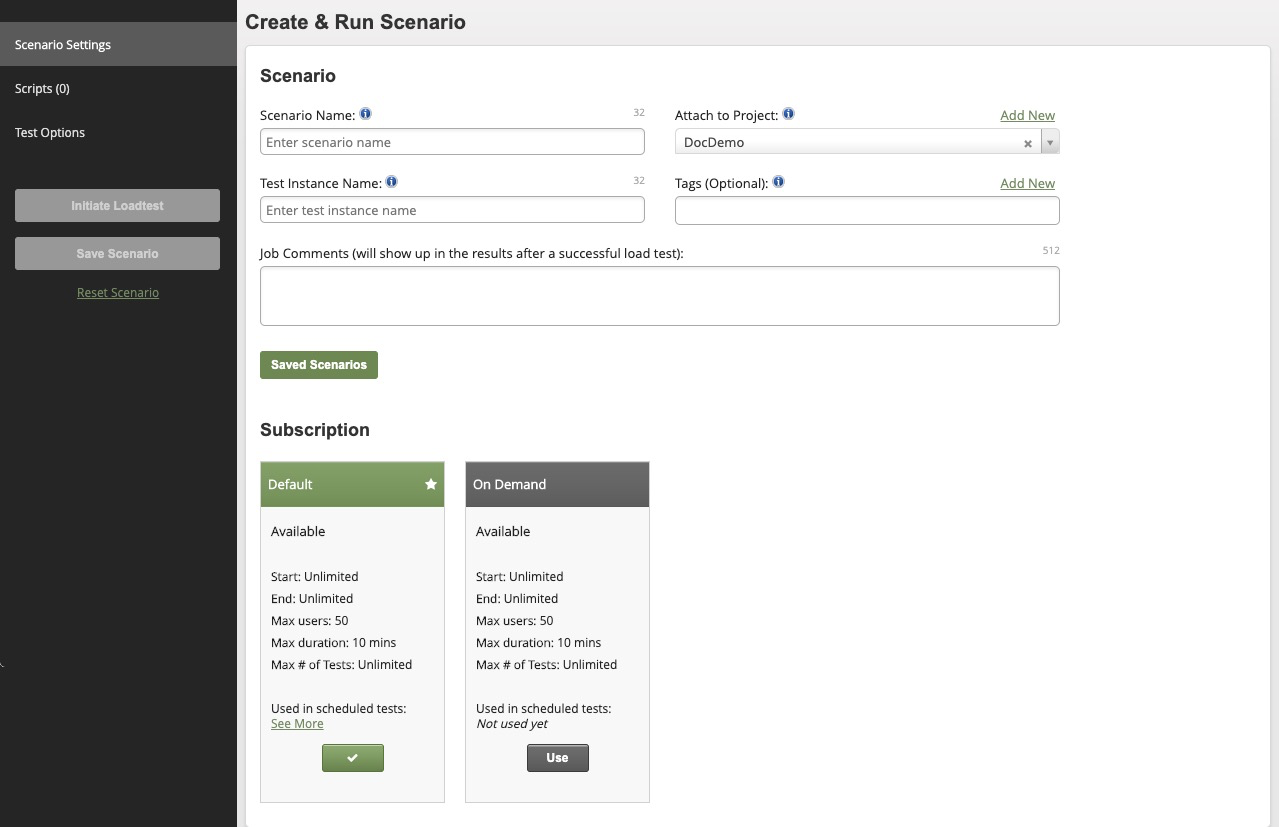
The general information section contains information about the scenario, which project and instance it belongs to, tags and additional information.
The “Load Scenario” button allows users to select a scenario from the Saved Scenarios dialog:
Unique scenarios can be saved via the “Save Scenario” button. The next step when creating a load test is to choose which Plans & Subscriptions to use for the test.
### Step 2: Select scripts to include in the scenario
After choosing the desired subscription, it is time to pick the scripts to use in the scenario.
As you select scripts and configure them, a projection is shown below the configuration:
To configure advanced options for each script, click the “gear” icon to the right of each row:
### Step 3: Define Script Options (optional)
The “Script Options” step will only appear if you click the “Script Config” button to the right of a script within the “Scripts” tab.
The Advanced Options section defines flow control for users and load test engine options. The **Max Loops per User** section defines the number of times an individually defined user will loop through the script. The **Request Timeout (sec)** defines the time a request will wait for a server response. It is possible to define **Additional Options** on a Scenario level. These additional options will apply to all scripts in the scenario. Users can define additional options exactly as they would for an individual load test. The **User Input text files** allow the external input of files containing User-Defined Variables.
Users must define a cluster of locations from which their test will be run in the **Locations** section. Select the Load Generation location, or Cluster of Load Generation locations before running the test. Select from the map or use the dropdown box for a list of all locations/clusters. Note that users can select a set of locations and then save them as a Cluster for easier re-use.
The red “X” icon allows users to delete a cluster after it is defined.
The **Client options** field defines load test client behavior and settings:
The **Clientside Monitoring** section allows for basic service monitoring through a single endpoint (URL) or a monitoring script (Selenium IDE). The **DNS** section allows users to specify multiple options related to DNS:
If you have included a DNS Hosts or DNS Translation file as part of a script (in a .zip file), those files will appear in the dropdowns in the image above. Check the "Resolve DNS for Each Executed Loop " to have a new/non-cached DNS resolution per each loop execution.
### Step 4: Define Test Options
Define additional test options, such as reporting, as directed in this step.
The schedule determines when the scenario will run. You must schedule at least one run.
When the schedule has been defined, the load test can be saved and initiated. When the test is initiated, the user will be brought to the Jobs page, where they will be able to observe the Scenario as it runs.