> For the complete documentation index, see [llms.txt](https://docs.apica.io/llms.txt). Markdown versions of documentation pages are available by appending `.md` to page URLs; this page is available as [Markdown](https://docs.apica.io/platform-docs/test-data-orchestrator-tdo/user-documentation/end-user-guide-for-tdo/executing-workflows.md).
# Executing Workflows
TDO provides for the ability to create automated workflows that can be executed within TDO. These workflows will be set up by the builders and can be executed by end users if your ID is granted workflow exection rights and your ID is authorized to run those specific workflows within the selected project. If you do not have workflow rights, you will not see the Work Flows option on the menu. If you have not been granted rights to execute a specific workflow you will not see it on the work flows page.
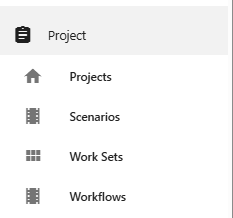
Work Flows are the final sub-item in the Projects section of the menu.
Selecting Workflows
Select 'Workflows' to see the items you have been granted access to execute. You will have 3 icons available. The dark blue icon is the summary execution log - once you have run a workflow the log will show the status of each item in the workflow. The middle icon is the 'clear log' option - this will clear the results of any prior runs so that you only see results from your run once executed. The right arrow button will run the workflow. If this icon is blue you can execute the workflow. If this icon is grey then someone else is executing the workflow and it is not available for you to run until their run is complete. Note that you will not have the option to edit the workflow or see what items are in it.
Workflows page
Builders have the option to set execution parameters (values the user must enter to start the workflow) or not. If these are set, you will first get a popup window to provide this action.
{% hint style="info" %}
Parameters can be completely blank or can contain a default value (shown below). When a default value is shown you have the option to keep it as is or to replace it with a different value. Parameters can also be set so that the data you enter is masked (\*\*\*\*). This is generally done when you are being asked to provide a security item.
{% endhint %}
Click the blue arrow to start execution. If execution parameter(s) is/are required, you will see a pop up asking you to provide them. Provide the value and click 'Execute' to start the workflow.
Execution parameters window with default value
Once execution starts, you will see a progress window. Progress for the workflow execution is not the amount of time remaining (as TDO does not know how long each workflow item will need to run) but is based on the number of workflow activities being executed. The name of the activity being executed will be shown after the 'Activity:' label.
Workflow progress bar
Once the workflow is completed, you can view the summary log by clicking the blue log icon. Each activity in the workflow will have 2 lines: an info line showing the command being executed, and then a return line, either an info line stating activity completed (successful) or an error code (activity failed). Note that if an activity fails, the workflow will stop and will not execute any further steps. Note that you will also briefly see a red error bar on the right upper quadrant of the screen if the workflow fails.
Workflow summary log - success
Workflow summary log with an error; execution stopped at this point.