> For the complete documentation index, see [llms.txt](https://docs.apica.io/llms.txt). Markdown versions of documentation pages are available by appending `.md` to page URLs; this page is available as [Markdown](https://docs.apica.io/platform-docs/test-data-orchestrator-tdo/user-documentation/tdo-project-builder-user-guide/work-sets/automatically-creating-deleting-assignment-rules.md).
# Automatically Creating / Deleting Assignment Rules
### Auto Generation of Assignment Rules
TDO can automatically create assignment rules for your data.
{% hint style="warning" %}
TDO matches field names between the different files (action/scenario output files to data views and data files) to complete these assignment rules. An exact match is run first, and then a 'fuzzy' match.
In order to effectively use this function, your fields should have the same, or highly similar, field names.
Also note that TDO will not be able to determine conditional rules, mathematical calculations, or fixed value assignments; those will still need to be manually created.
{% endhint %}
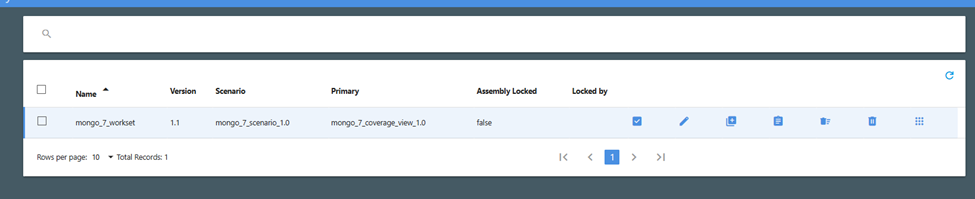
To use this fuction, select the workset on the main Work Sets page. Click the clipboard icon (4th from the left) to automatically generate business rules.
Work Sets page for automatic rule generation
When the rule generation is complete, a green success message will pop up on your desktop.
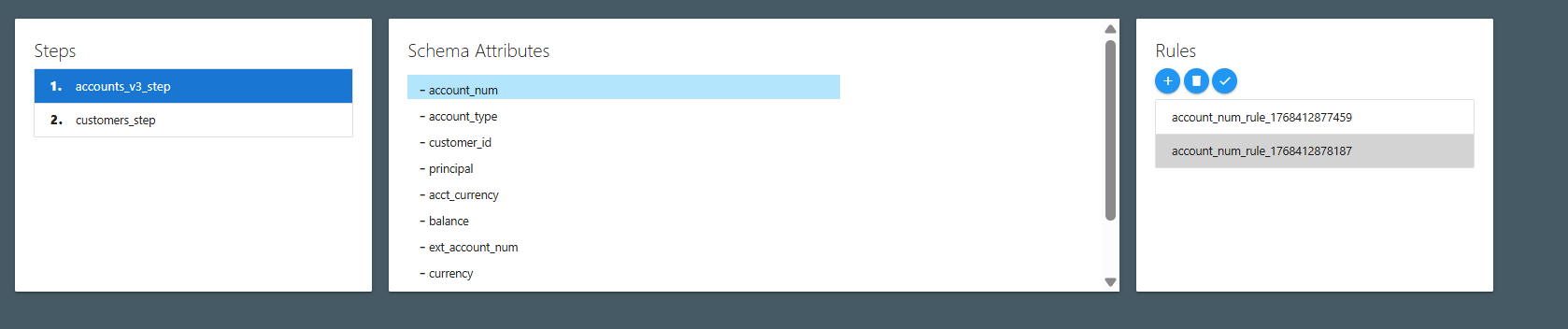
If you open the assignment rules, you can view the generated rules. You will need to manually review all of the rules and modify as needed.
Viewing auto generated assignment rules
You will notice that the rules will display with different levels of shading. A rule in white (first rule shown above) is an exact match to a coverage view field. A shaded rule is a 'fuzzy logic' rule as inferred by TDO. In the case above, we want the exact match rule; the fuzzy match rule should be deleted.
{% hint style="danger" %}
All fuzzy logic auto generated rules should be reviewed for accuracy before use.
{% endhint %}
It is highly recommended that after auto generation, you review the rules for each output value and edit/delete as needed so that only the rule(s) you want are retained.
### Delete all Assignment Rules
When working with auto rule generation, you want to start with a clean slate. The icon to the right of the clipboard 'generate' icon is a trash can with lines to it's right. This icon will delete all existing assignment rules.
Before running automated rule generation, you should always delete the existing rules using this icon.