> For the complete documentation index, see [llms.txt](https://docs.apica.io/llms.txt). Markdown versions of documentation pages are available by appending `.md` to page URLs; this page is available as [Markdown](https://docs.apica.io/platform-docs/synthetic-monitoring-overview/explore-the-platform/integrations/pagerduty-integration.md).
# PagerDuty Integration
**Caveat**: each of the following integration directions was based on the UI when it was written. The UIs may change by the time you read this, so *UI updates are beyond the scope of these articles*. Please go to the integration target sites for their latest information on integration directions.
## PagerDuty + Apica Integration Benefits
* Notify on-call responders based on alerts sent from Apica ASM.
* Send enriched event data from Apica, including links to visualizations and metrics that triggered the event.
* Create high and low urgency incidents based on the severity of the event from the Apica-triggered event.
* Incidents will automatically resolve in PagerDuty when the metric in Apica ASM returns to normal.
## How it Works
Any service availability check in Apica ASM be configured to trigger events of varying severity based on the thresholds set. When a service or collection of services violates the configured thresholds, Events can be escalated and routed directly to PagerDuty for alerting.
When the services return to normal, PagerDuty is automatically updated.
## Requirements
Only active Apica and PagerDuty accounts are needed to use this integration..
## Support
If you need help with this integration, please contact:
## Integration Walkthrough
### In PagerDuty
#### Integrating With a PagerDuty Service
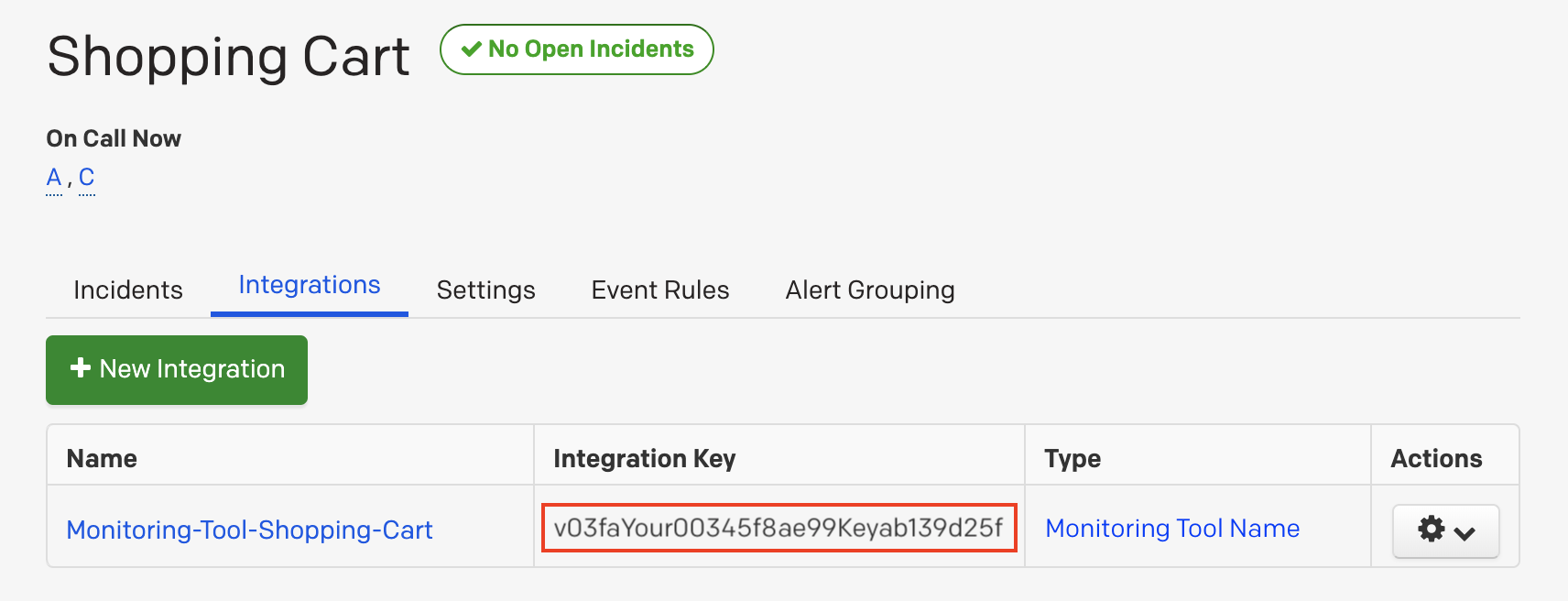
1. From the **Configuration** menu, select **Services**.
2. There are two ways to add an integration to a service:
* **If you are adding your integration to an existing service, click the name of the service to which you want to add the integration**, and click the name of the service to which you want to add the integration. Then, select the **Integrations** tab and click the **New Integration button**.
* **If you are creating a new service for your integration, please read our documentation in the Configuring Services and Integrations section**, please read our documentation in the Configuring Services and Integrations section and follow the steps outlined in the [Create a New Service](https://support.pagerduty.com/docs/services-and-integrations#section-create-a-new-service) section, selecting ***Apica*** as the **Integration Type** in step 4. Continue with the In ***Apica*** section (below) once you have finished these steps.
3. Enter an **Integration Name** in the format `monitoring-tool-service-name` (e.g. ***Apica***-Shopping-Cart) and select ***Apica*** from the Integration Type menu.
4. Click the **Add Integration** button to save your new integration. You will be redirected to the Integrations tab for your service.
5. An Integration Key will be generated on this screen. Keep this key saved in a safe place, as it will be used when you configure the integration with Apica in the next section.
## Configure PagerDuty Within ASM
To Setup Synthetic Monitoring with PagerDuty, you need to authorize Apica in PagerDuty, and configure at least one service. It is possible to set up Apica to work with multiple PagerDuty services, by simply repeating the setup for each service.
### Authorize
The first step of the PagerDuty integration is authorizing Apica in PagerDuty.
To authorize Apica:
* Click **Add PagerDuty Account**
The PagerDuty integration dialog is shown:
* Enter the **Email** address for your PagerDuty account
* Enter a **Password** for your PagerDuty account
* Click **Authorize Integration**
### PagerDuty (Existing Service)
If you already have a service set up, you can select it directly.
**Add Existing Service**
To add an existing service:
* Check the **Use existing service** option
* Select a service from the dropdown list
### PagerDuty (New Service)
If you don't have any existing services, or if you want to create a new service. To add a new service:
* Check the **Crete a new service** option
* Enter a **Service Name**
The escalation polices configured in PagerDuty is shown in the dropdown list.
* Select an **Escalation Policy** from the dropdown list
### Finish PagerDuty Integration
After authorization, and selecting a service or creating one, you can finish the integration.
* Click **Finish Integration**
The account is added to the list:
Once the PagerDuty account has been added, you can [set up a PagerDuty alert within ASM](https://apica-kb.atlassian.net/wiki/spaces/ASMDOCS/pages/2150563916/Configuring+Alerts#PagerDuty-Alerts). When that is done, any alert which triggers within Apica will trigger a PagerDuty alert, and any alert which resolves within Apica will resolve the corresponding PagerDuty alert.
## How to Uninstall
### In Apica ASM
1. Go to ***Integrations -> Pagerduty***
2. Click the trashcan icon next to the PagerDuty integration you want to remove.